
What Does “Word Found Unreadable Content” Actually Mean?
You’re in the middle of your workday, you double-click a Word document, and instead of your file opening normally, you get hit with a pop up that says:
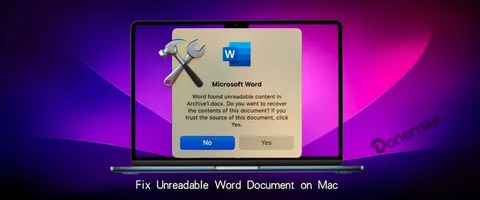
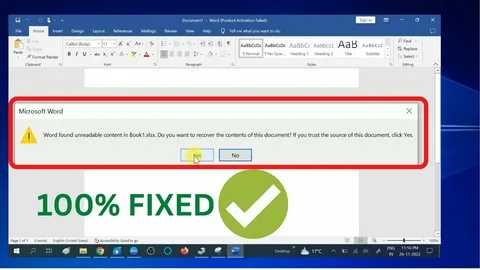
“Word found unreadable content in [filename]. Do you want to recover the contents of this document? If you trust the source of this document, click Yes.”
That single message can trigger real panic especially if the document holds hours of work, a client report, or something even more critical like a thesis or legal contract.
Here’s the reassuring truth: seeing the word found unreadable content error doesn’t always mean your file is gone forever. In many cases, Word is detecting something it can’t interpret within the file’s structure but the content itself may still be recoverable. Understanding what’s actually happening under the hood is the first step to fixing it confidently.
Why Does This Error Happen? The Real Causes
The word found unreadable content message is essentially Microsoft Word telling you that something inside the .docx file’s XML structure is broken, missing, or unrecognizable. A .docx file isn’t just a simple text file it’s a compressed package of XML files, media folders, and relationships. When any part of that package gets damaged or incompatible, Word throws this error.
There are several common culprits behind this problem:
File corruption is the most frequent reason. This can happen when a file is saved incorrectly, interrupted mid-save by a power cut, or stored on a failing drive. Even a brief freeze during an autosave can corrupt the file’s internal structure.
Virus or malware infection is another serious cause. If your system is compromised, malicious software can alter the internal content of Word files, making them unreadable without obvious signs until you try to open them.
Format round-tripping converting a file from .docx to another format (like .rtf or .odt) and then converting it back can introduce structural inconsistencies that trigger the unreadable content warning.
Abrupt system shutdowns are surprisingly common causes. If your laptop runs out of battery, your system crashes, or Windows updates and restarts while Word is open, whatever file was being written at that moment can end up partially saved and therefore corrupt.
Incompatible content controls from the Developer ribbon, such as drop down menus, date pickers, or legacy form fields, can also produce this error particularly when the template was created in an older version of Word and opened in a newer one.
Add-ins and macros can sometimes interfere with how Word writes and reads file content, causing problems that appear as unreadable content when the file is next opened.
Knowing the cause matters because it often points you directly toward the right fix.
How to Fix Word Found Unreadable Content Step by Step
Below are six proven methods, ordered from simplest to most advanced. Try them in order and stop as soon as one works.
Fix 1: Use the Built-In “Open and Repair” Feature
This is always the first thing to try. Microsoft Word includes a built-in repair function designed specifically for situations like this.
- Open Microsoft Word, but don’t open your file directly.
- Go to File → Open → Browse.
- Navigate to your damaged file, but instead of double-clicking it, single-click it to select it.
- Click the small dropdown arrow next to the “Open” button.
- Select “Open and Repair” from the menu.
Word will attempt to detect and fix the internal issues before opening the document. If the corruption is minor, this works remarkably well and takes only a few seconds. Save the repaired file under a new name immediately so you don’t overwrite anything.
Fix 2: Recover Text from Any File
If “Open and Repair” doesn’t fully solve the word found unreadable content error, try extracting just the raw text. You’ll lose formatting, but you’ll get your words back which is often all that matters.
- Go to File → Open → Browse.
- In the file type dropdown at the bottom of the Open dialog (which defaults to “All Word Documents”), change it to “Recover Text from Any File (.)”.
- Select your damaged file and click Open.
Word will extract whatever text it can from the document. The result will look rough no headers, no tables, no images but the words are there. Copy everything into a fresh document and reformat from there.
Fix 3: Disable Protected View
When a file comes from the internet, email, or an external drive, Word automatically opens it in Protected View a restricted mode that prevents editing and can sometimes cause the unreadable content error to surface.
Disabling Protected View gives Word full access to read the file:
- Open Word and go to File → Options.
- Click Trust Center, then Trust Center Settings.
- Select Protected View from the left panel.
- Uncheck all three boxes:
- Enable Protected View for files originating from the internet
- Enable Protected View for files in potentially unsafe locations
- Enable Protected View for Outlook attachments
- Click OK, then try opening your file again.
A word of caution: only do this if you trust the source of the file. Re-enable Protected View once you’ve recovered your document.
Fix 4: Unblock the File via Properties
Windows sometimes “blocks” files that were downloaded from the internet as a security measure. This block can cause the word found unreadable content error even when the file itself isn’t actually damaged.
To unblock the file:
- Right-click the problematic Word file.
- Select Properties from the context menu.
- On the General tab, look for a message at the bottom that says “This file came from another computer and might be blocked to help protect this computer.”
- Check the Unblock checkbox and click Apply, then OK.
- Try opening the file again.
This is one of the most overlooked fixes, and it works more often than you’d expect especially for files shared via email or downloaded from cloud storage.
Fix 5: Restore from OneDrive or Cloud Version History
If your file was saved to OneDrive, SharePoint, or another cloud service, you may be able to roll back to an earlier, uncorrupted version completely bypassing the repair process.
For OneDrive:
- Go to OneDrive online or via File Explorer.
- Right-click the file.
- Select Version History.
- Browse the available versions and open an older one from before the corruption occurred.
- Restore or download that version.
For files with AutoRecover enabled in Word, check the hidden AutoRecover folder. In Windows, it’s typically located at: C:\Users\[YourName]\AppData\Roaming\Microsoft\Word\
These autosaved versions are separate from your main file and may be intact even when the primary copy is corrupted.
Fix 6: Use a Third Party DOCX Repair Tool
When all built-in methods fail to resolve the word found unreadable content problem, a dedicated repair tool is often the best remaining option. Several reputable tools exist specifically for recovering corrupted Word documents:
SysInfo DOCX Repair Tool offers both standard and advanced recovery modes, supports batch recovery of multiple files, and includes a preview feature so you can verify the content before saving.
4DDiG File Repair is another solid option, particularly praised for handling severe corruption. It uses a scan-based approach to identify and recover as much content as possible from damaged .docx files.
LibreOffice (free) can sometimes open files that Word itself refuses to touch. Try opening the damaged file in LibreOffice Writer, then exporting it as a new .docx file. Many users have recovered files this way without spending a cent.
Mac Users: Special Steps for Word Unreadable Content
If you’re on a Mac and running into the word found unreadable content issue, the process is similar but with some platform specific nuances.
The “Open and Repair” option is available on Mac Word as well: go to File → Open, select your file, and hold the Option key while clicking Open to access repair options.
For files backed up to iCloud Drive, version history is accessible directly from the File → Revert To → Browse All Versions menu in macOS. This is Mac’s equivalent of OneDrive version history and can be a lifesaver.
If none of those work, LibreOffice on Mac handles corrupt .docx files well. Download it free from libreoffice.org, open your damaged file, and export it to a fresh .docx.
How to Prevent This Error From Happening Again
Fixing the word found unreadable content error once is frustrating enough fixing it twice is avoidable. A few smart habits will dramatically reduce your chances of ever seeing this error again.
Save incrementally and save often. Don’t rely solely on AutoRecover. Develop the habit of hitting Ctrl+S (or Cmd+S on Mac) regularly throughout your work session.
Enable AutoRecover and set it to save every 5 minutes. Go to File → Options → Save and ensure AutoRecover is active with a short interval.
Avoid format round tripping. If you convert a .docx to .rtf or .odt for compatibility reasons, keep the original .docx file untouched and work from the converted copy.
Keep Word and Windows updated. Many unreadable content errors stem from software bugs that Microsoft has already patched. Running the latest version significantly reduces risk.
Use reliable storage. Avoid saving critical documents directly to USB drives or SD cards, which are more prone to corruption than internal SSDs or cloud storage.
Back up regularly. Use Windows File History, Time Machine on Mac, or a cloud backup service. A backup from even a day ago is infinitely better than nothing.
Related Errors You Might Also See
The word found unreadable content error sometimes appears alongside or gets confused with a few other common Word errors. Knowing the difference helps you apply the right fix faster.
“Word experienced an error trying to open the file” typically appears after you click “Yes” on the unreadable content prompt and Word still can’t open the document. This usually signals deeper corruption and calls for the “Open and Repair” or third party tool approach.
“The file cannot be opened because there are problems with the contents” is essentially the same underlying issue but phrased differently depending on the Word version. The same fixes apply.
“Word was unable to read this document. It may be corrupt.” This message appears when Word can’t even begin parsing the file often due to severe corruption or a completely incompatible file format. The text recovery converter is your best first move here.
“Word cannot save or create this file” is a different error, related to write permissions or disk space rather than file corruption, but it can cause corruption if the file was mid save when the error struck.
FAQ
Why does the “Word found unreadable content” error keep coming back on the same file?
If the error persists even after using “Open and Repair,” the corruption is likely structural and deep within the file’s XML. This typically happens with files that contain complex content controls, nested tables, or embedded objects. Use the text recovery method or a third party repair tool to extract what you can, then rebuild the document in a fresh file.
Is it safe to click “Yes” when Word asks if I want to recover the contents?
Yes, it’s safe to click “Yes” Word is simply asking permission to attempt a repair on its own. Clicking Yes does not modify your original file it creates a recovered copy. However, you should save that recovered copy with a new name immediately so you don’t risk overwriting anything.
Can a virus cause the word found unreadable content error?
Absolutely. Malware can modify a document’s internal XML structure, rendering it unreadable by Word. If you suspect this is the case, run a full system scan with your antivirus software before attempting to open the file again, and be cautious about enabling content in any document that prompts you to do so.
I tried everything and my file still won’t open. Is the content gone permanently?
Not necessarily. Even severely corrupted files can sometimes yield partial or full content with professional-grade recovery tools. Before giving up, try the “Recover Text from Any File” option in Word, attempt to open the file in LibreOffice, and try a reputable DOCX recovery tool. In extreme cases, data recovery specialists can work at the file system level to extract content from damaged storage media.
How do I stop Word from showing this error for files from email or the internet?
Files downloaded from external sources are flagged by Windows and opened in Protected View by Word. To avoid the error, right-click the file after downloading and select Properties, then check the Unblock box before opening. You can also adjust Word’s Trust Center settings (File → Options → Trust Center → Trust Center Settings → Protected View) to reduce how aggressively it restricts external files just do this thoughtfully and only if you regularly receive files from trusted sources.
